AionUi - Free Open-Source Desktop Office Agent
AionUi Tutorial — A free open-source desktop office agent supporting various AI agents like Gemini CLI, Claude Code, Codex, and more. Integrates with 魔方AI to enable multi-model workflows.
- Official Website: https://www.aionui.com
- GitHub Repository: https://github.com/iOfficeAI/AionUi
- Download Link: https://github.com/iOfficeAI/AionUi/releases
Core Features
💬 Multi-Session Chat
- Multi-session + Independent Context - Allows opening multiple chat sessions simultaneously, each with its own independent context memory.
- Local Storage - All conversation data is stored locally in an SQLite database and will not be lost.
🤖 Multi-Model Support
- Multi-Platform Support - Supports mainstream models like Gemini, OpenAI, Claude, Qwen, with flexible switching.
- Local Model Support - Supports local model deployment via Ollama, LM Studio, etc.
🤝 Multi-Agent Mode
- Run Multiple AI Agents Simultaneously - Allows running multiple AI agents concurrently (e.g., Gemini CLI, Claude Code, Codex, OpenCode, Qwen Code, Goose CLI, Auggie, etc.).
- Unified MCP Management - Unified management and configuration of all agents via Model Context Protocol (MCP), simplifying operation.
- Skills Configuration - Supports configuring exclusive Skills for different agents to extend their capabilities.
- Assistant Customization - Supports custom assistant configurations to create personalized AI workflows.
- Independent Configuration - Each agent can be configured and used independently without interference.
- Flexible Switching - Seamlessly switch between different agents to meet various scenario requirements.
🗂️ File Management
- File Tree Browsing + Drag-and-Drop Upload - Browse files like a folder, supports drag-and-drop of files or folders for one-click import.
- Smart Organization - AI can help organize folders and automatically categorize them.
📄 Preview Panel
- 9+ Format Preview - Supports formats like PDF, Word, Excel, PPT, code, Markdown, images, etc.
- Real-time Tracking + Editable - Automatically tracks file changes, supports real-time editing and debugging of Markdown, code, HTML.
🎨 AI Image Generation and Editing
- Smart Image Generation - Supports various image generation models such as Gemini 2.5 Flash Image Preview, Nano, Banana, etc.
- Image Recognition and Editing - AI-powered image analysis and editing features.
🌐 Multi-Channel Access
- WebUI Remote Access - Accessible via browser from any device on the network, supports mobile devices.
- Telegram Integration - Supports interaction via Telegram bots.
- Feishu Integration - Supports access and interaction via Feishu.
- Local Data Security - All data is stored in a local SQLite database, suitable for server deployment.
魔方AI Integration Method
Parameter Entry
Provider Type: Types supported by 魔方AI
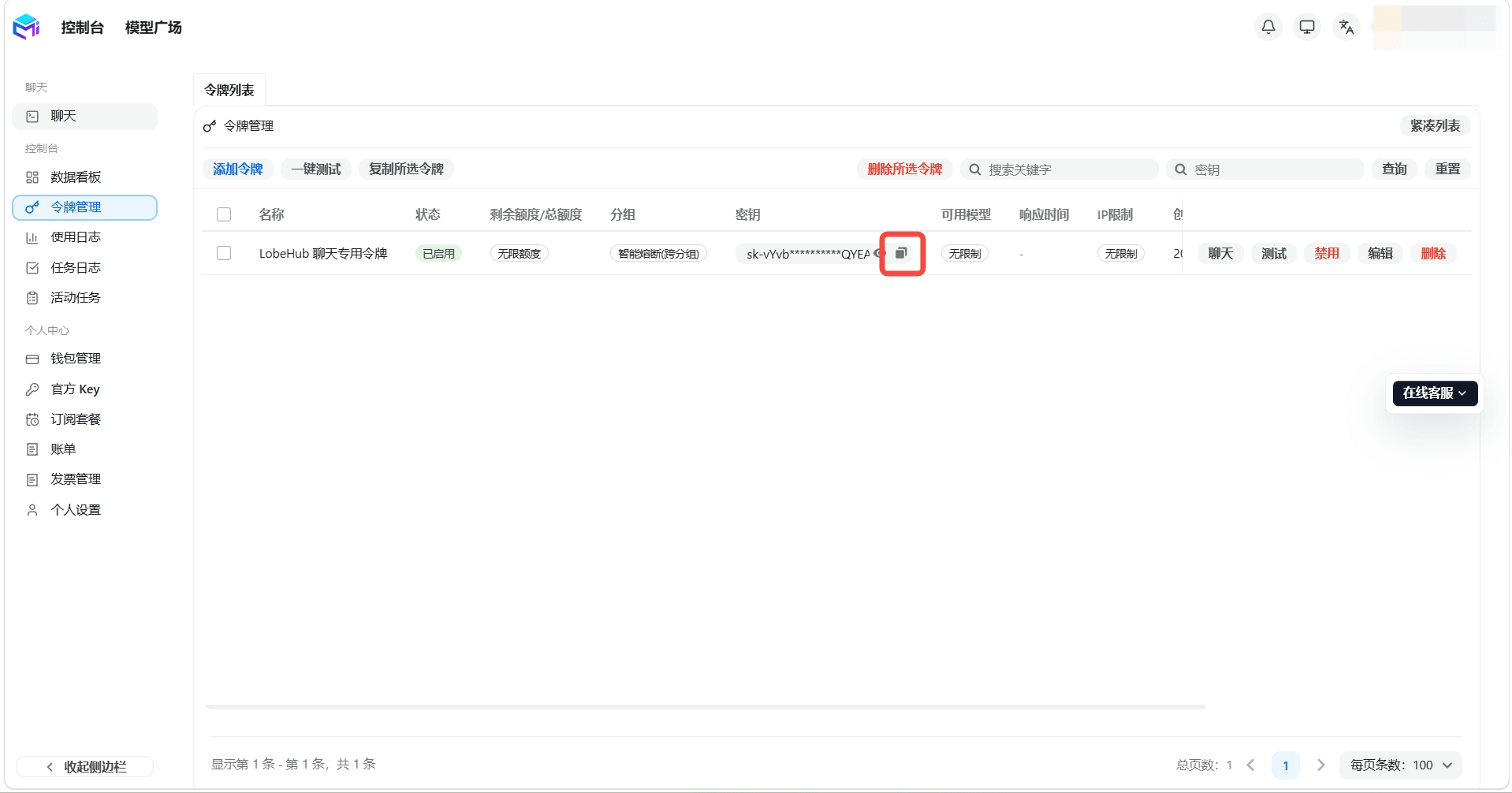
API Key: Obtained from 魔方AI
API Address: 魔方AI site address (e.g., https://<your-mofang-domain>/v1)
Please use your self-deployed 魔方AI, or ensure that the service provider offers 魔方AI services with legitimate upstream authorization and compliance obligations. Do not connect API addresses or keys from unknown sources to a production environment.
Configuration Steps
-
Copy API key in 魔方AI
-
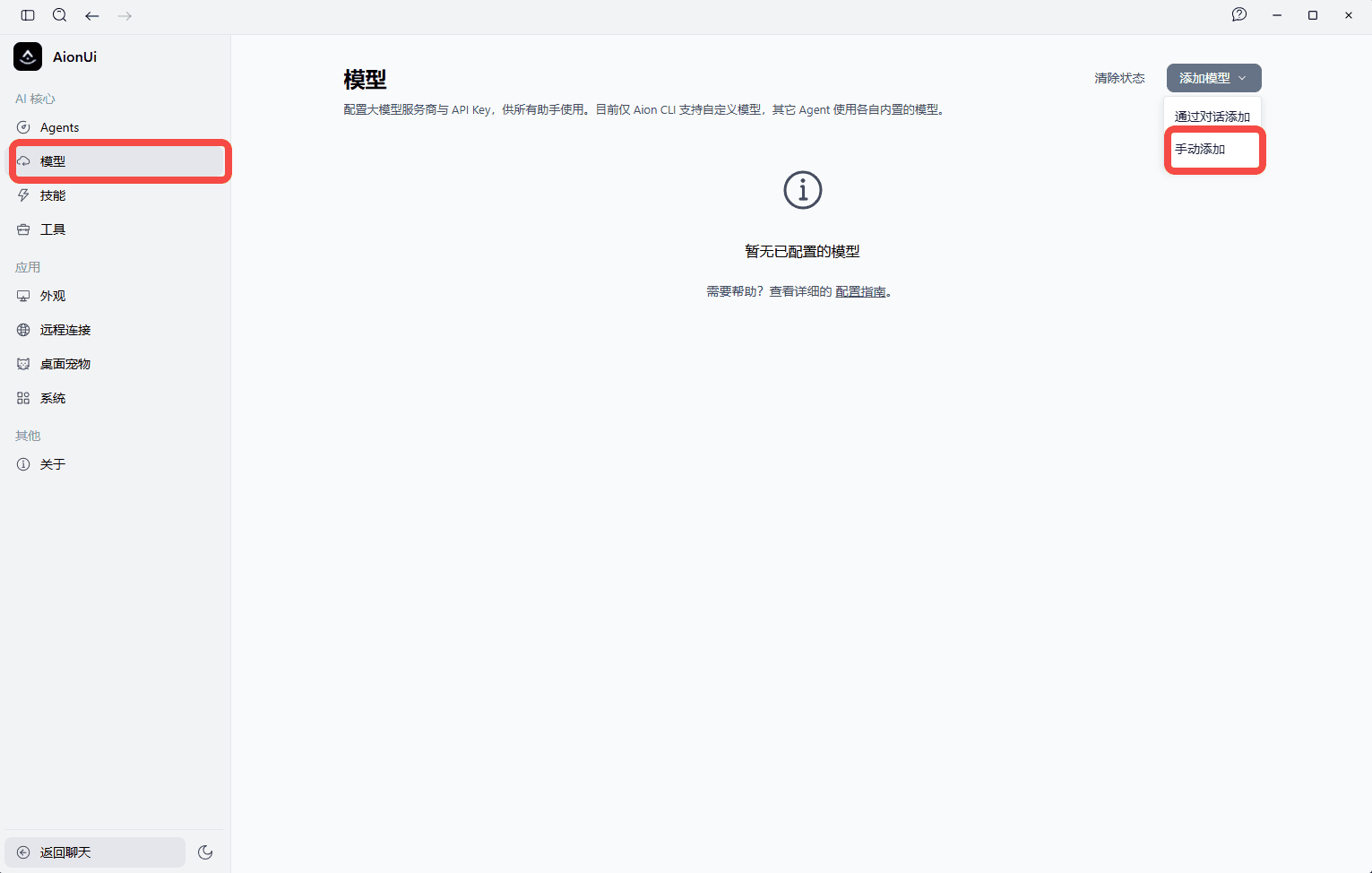
Open AionUi Settings
- Go to the settings page in AionUi
- Find the Model Configuration Tab
- Click "Add Model"
-
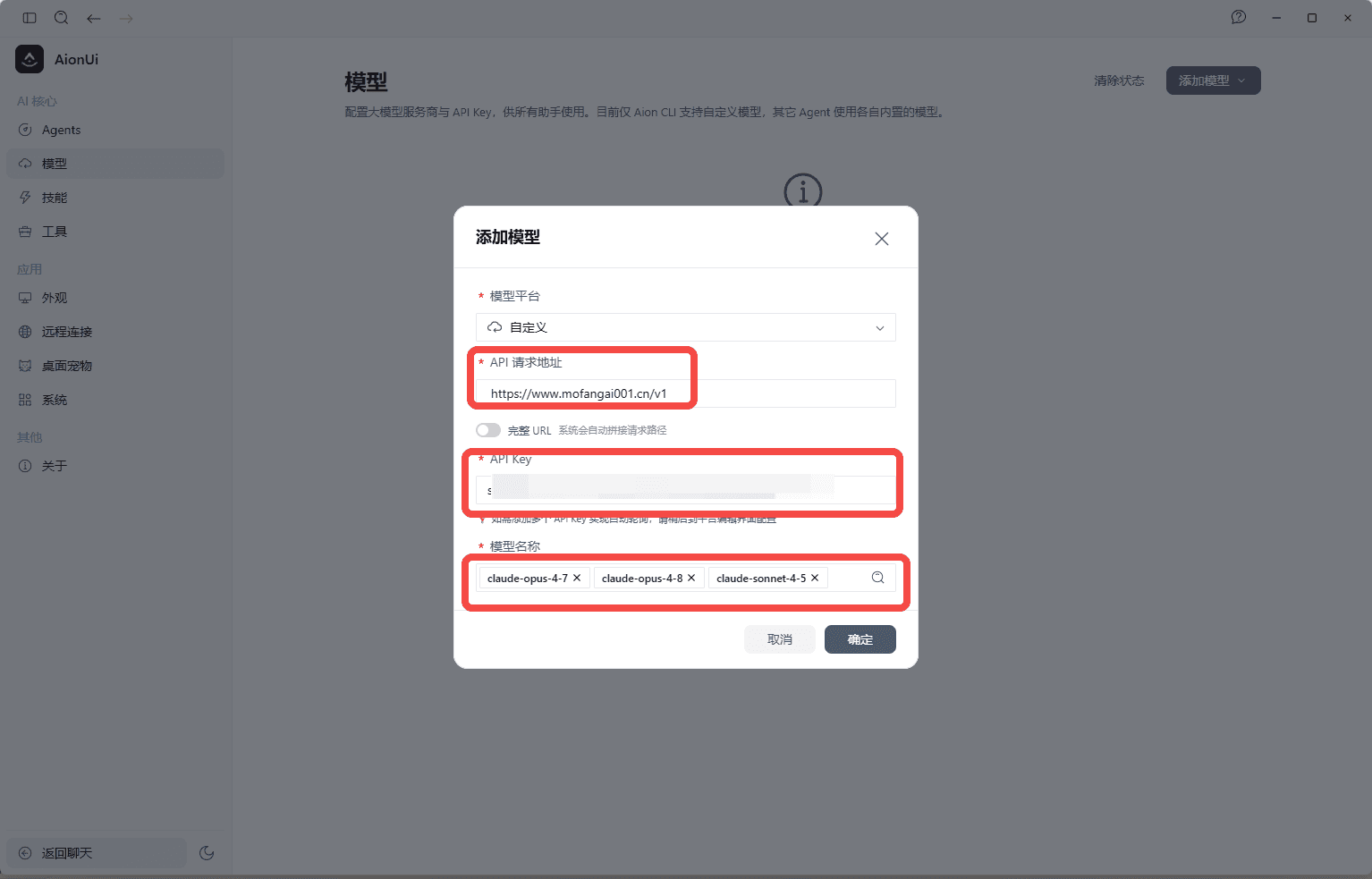
Add New Provider
- Click "Add Model"
- Select 魔方AI
-
Configure API Information
- API Address: Enter your 魔方AI site address (format:
https://<your-mofang-domain>/v1) - API Key: Paste the API Key copied from the 魔方AI console
- API Address: Enter your 魔方AI site address (format:
-
Add Model
- Select the model to add from the dropdown
- The model name should match the model name configured in 魔方AI
- Select the appropriate request protocol
-
Start Using
- Return to the chat page
- Select the configured 魔方AI model to start a conversation