Chatbox
Configure 魔方AI in Chatbox with a custom Claude API-compatible provider, fetch models, and select a model for chat.
Connect Chatbox to 魔方AI manually with Chatbox's Claude-compatible provider mode.
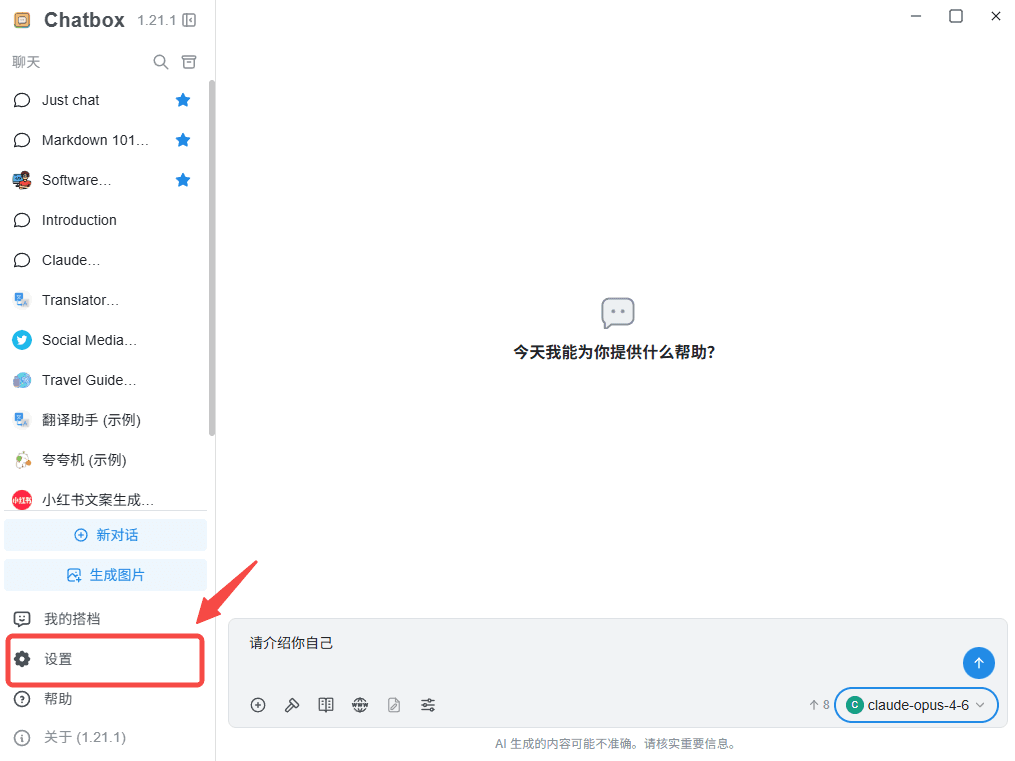
1. Open Chatbox Settings
Open Chatbox, then click Settings in the lower-left corner.
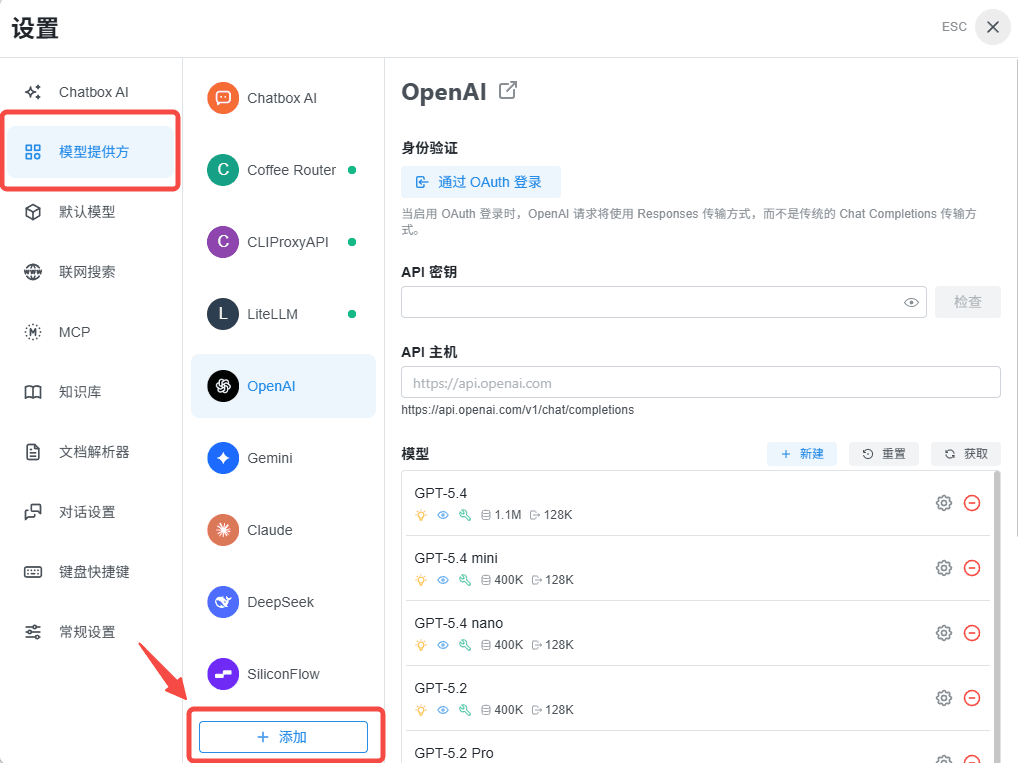
2. Open Model Provider and Add a Provider
In Settings, select Model Provider, then click Add at the bottom of the provider list.
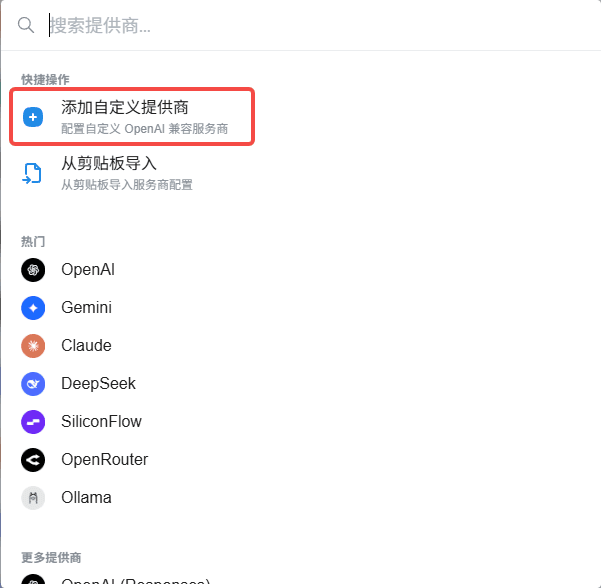
3. Choose Add Custom Provider
In the provider picker, select Add Custom Provider.
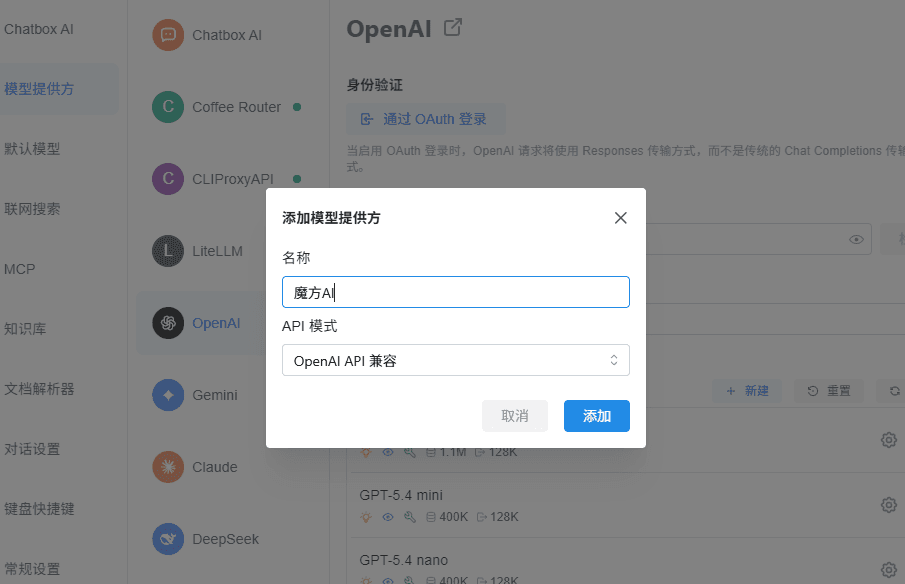
4. Configure the Provider Type
Enter the following values:
- Name:
魔方AI - API Mode: Claude API Compatible
Click Add to create the provider.
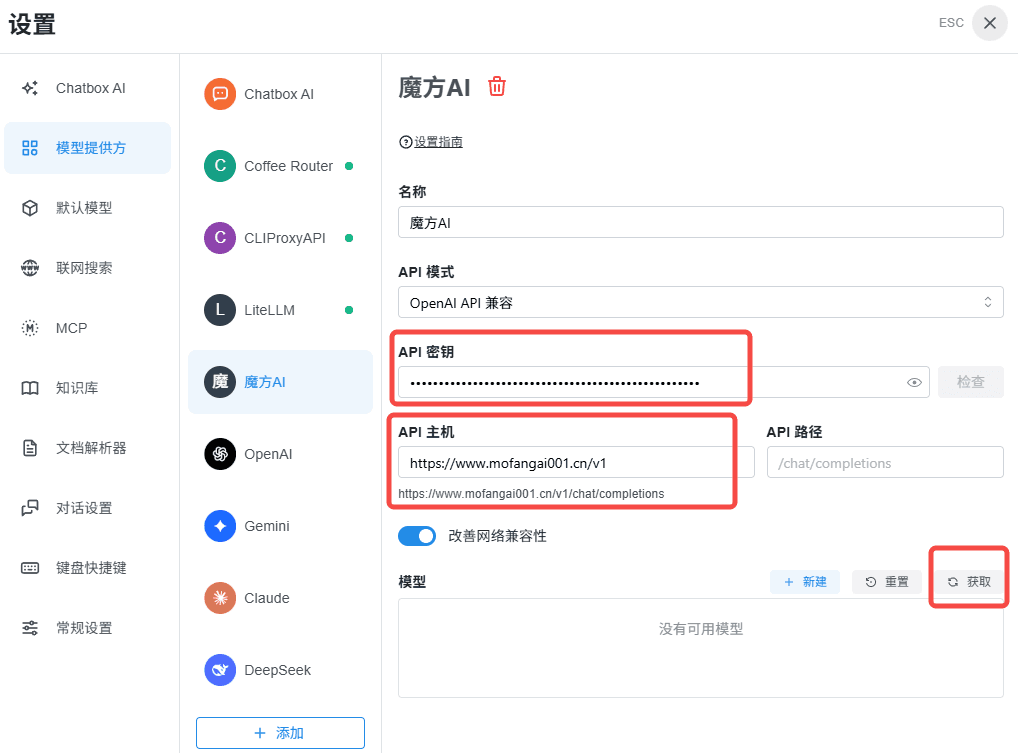
5. Enter the API Credentials and Fetch Models
Configure the new provider with these values:
- API Key: Obtain it from 魔方AI. The placeholder used in this guide is
sk-your-api-key. - API Host:
https://www.mofangai001.cn/v1 - API Path:
/messages
After entering the values, click Fetch.
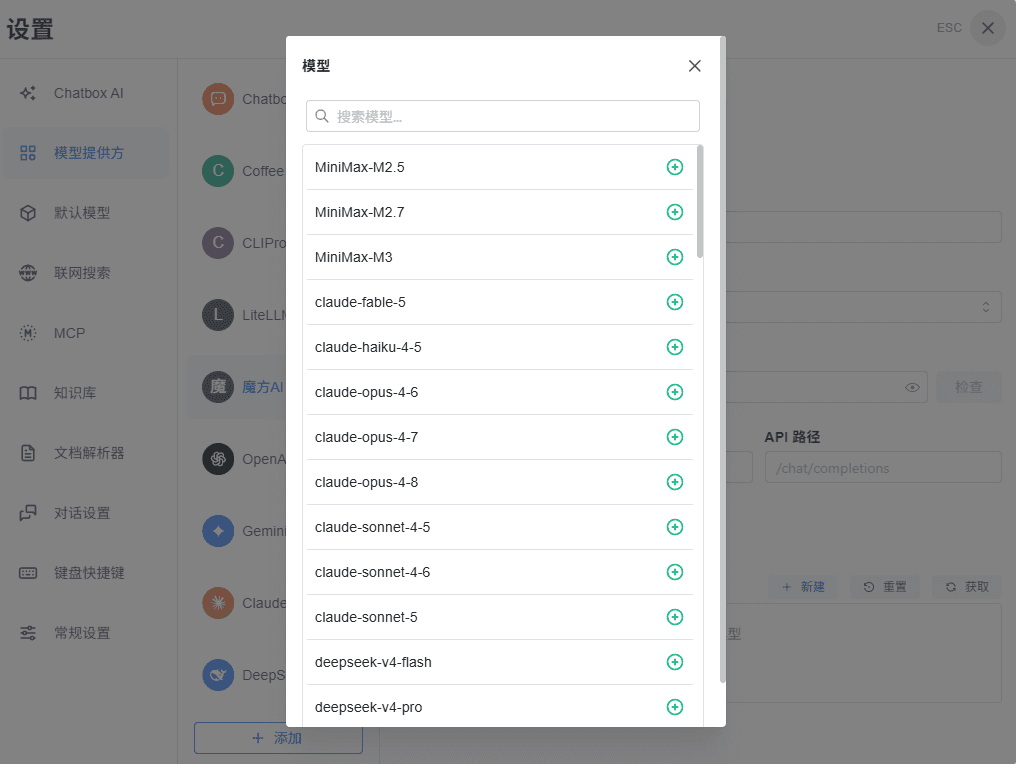
6. Adjust Model Mappings
Review the fetched model list, add the models you need, and adjust the model mappings as required.
7. Select a Model in Chat
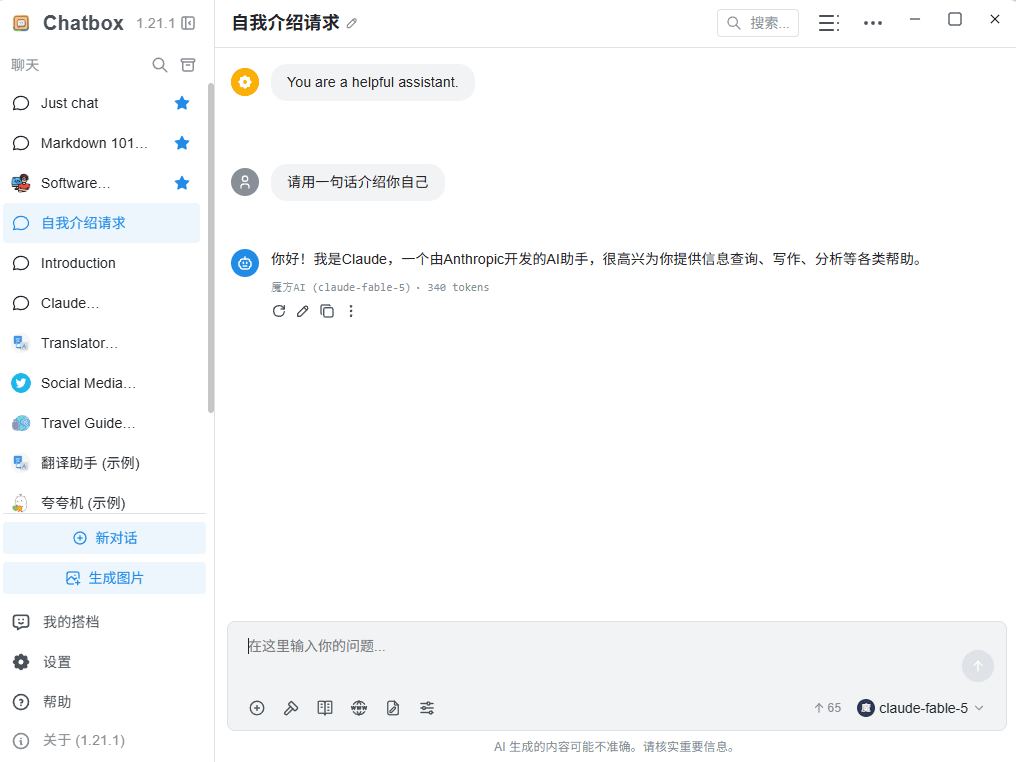
Return to the chat page, open the model selector, and choose the 魔方AI model you want to use. Send a message to confirm that the connection works.